

No cure, no pay
Support
AirPods quiet or no sound?
Don’t panic! We’re happy to help you fix this problem
Are your AirPods not making any sound? Is one AirPod performing worse than the other? Does your left AirPod work, but your right AirPod plays quietly? Then there's probably an issue with the battery, the connector, the connection or the software.
Don't worry, we've listed all the possible causes for you. Work through the points below and you'll be using your AirPods again within minutes! If you can't work it out yourself, book an appointment at one of our stores.
Charging your AirPods
Are your AirPods not working and does one AirPod play quietly? Then you first need to be sure the problem isn't the battery of your AirPods. To help you check this, we've explained below how to charge your AirPods properly.
To rule this out, put the AirPods in your AirPods case so they can charge. Make sure they stay in the case for at least 30 minutes and check that they really are charging. That way you can rule out a flat battery as the reason your AirPods have stopped working
Book an appointmentVisit a store
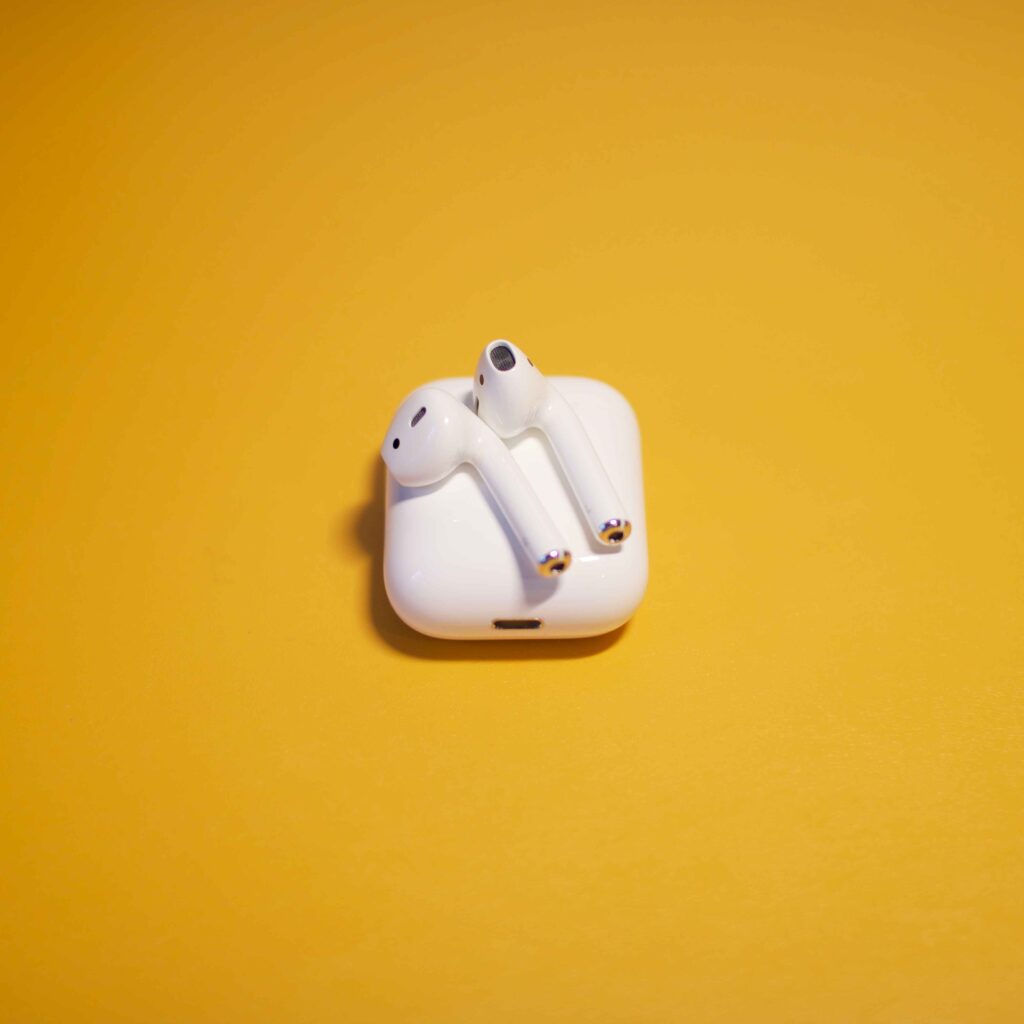
AirPods wireless charging case
If you have the wireless charging case for your AirPods, place the charging case with the status light facing up. The status light should come on for a few seconds and then go off while charging continues. If the light doesn't come on, move the case. If the case still doesn't charge, try using the cable that came with the case to charge it.
AirPods quiet or no sound: check the connections
If you do think your AirPods aren't charging properly, check the connections of your AirPods. Make sure the Lightning to USB cable is firmly plugged into the charging case and into the USB power adapter. Plug the power adapter into a power socket correctly.
If you're using a Qi-compatible charger, check that the cable is properly connected to the charger and that the other end is correctly plugged into a power socket.
AirPods quiet or no sound: reset your AirPods
We'll help you reset your AirPods, so you can reconnect them to your iPhone or MacBook and enjoy both AirPods with equal sound again.
If it still doesn't work, it's best to try resetting your AirPods. Something may have gone wrong during setup, causing one of the AirPods to stop working.
- On your iOS device, go to 'Settings' > 'Bluetooth'.
- Tap the 'i' icon next to your AirPods.
- Tap 'Forget This Device', then tap again to confirm.
- Put both AirPods in the charging case. Close the lid, wait 30 seconds and open the lid.
- Press and hold the setup button for a few seconds until the status light flashes white.
- Reconnect your AirPods by holding them close to your device and opening the lid. Then follow the steps shown on your device's screen.
- Test both AirPods.
If necessary, check the microphone and the speaker mesh on each AirPod. If you find any dirt, you can also clean your AirPods to see whether that solves the problem.
AirPods quiet or no sound: cleaning
One of your AirPods may also have stopped working because dirt is blocking the sound from reaching your ears, so one of your AirPods plays quietly or not at all. To fix this, we'll help you clean your AirPods and AirPods Pro.
- Never use water to clean your AirPods or AirPods Pro. This could stop your AirPods working altogether, and that would be a shame.
- Use a soft, dry cloth instead of water.
- Your AirPods may have been damaged by, for example, soap, shampoo, perfume, lotion, solvents, detergents, food or sun cream. If so, we recommend lightly dampening a cloth with water and wiping them clean, then drying them with a dry, lint-free cloth. Then let the AirPods dry thoroughly before putting them back in the charging case.
- Make sure no liquid gets into the openings.
- Clean the microphone and the speaker mesh with a dry cotton bud.
- Don't use sharp objects or abrasive materials to clean your AirPods or AirPods Pro.
Are your AirPods not working, is the sound quiet or missing, or do you have other problems with your Apple device? Fixers is the right place for you! Book a repair or contact us.