

No cure, no pay
Support
Your MacBook won't start up? Fixers has the solution!
Don’t panic! We’re happy to help you solve this problem
Your MacBook won't start up? How annoying! The screen stays black and you don't know what's going on? At Fixers, we have the best tips to get your MacBook started again. Drop by with no obligation, or follow the steps below to get your MacBook working again! If you can't work it out yourself, make an appointment at one of our service points or send your MacBook to us!
1. Charge your MacBook
Perhaps the easiest and quickest solution, but it would be silly not to check it! Your charger may have stopped working, which means your MacBook can't be charged. For example, you can check whether your wall socket works properly (by charging your phone or plugging in a lamp and seeing whether it works). If your wall socket works, you know at least that it isn't the cause. Then you can check whether the charger for your MacBook might be broken, which would stop you from starting up your MacBook. You can check this by using a different adapter, for example. Connect the other power cable and adapter to your MacBook. Then wait at least a quarter of an hour and try to start your MacBook. Now hold down the power button for 10 seconds. After that, you can press the power button again to see whether your MacBook will start up now.
Make an appointmentVisit a store
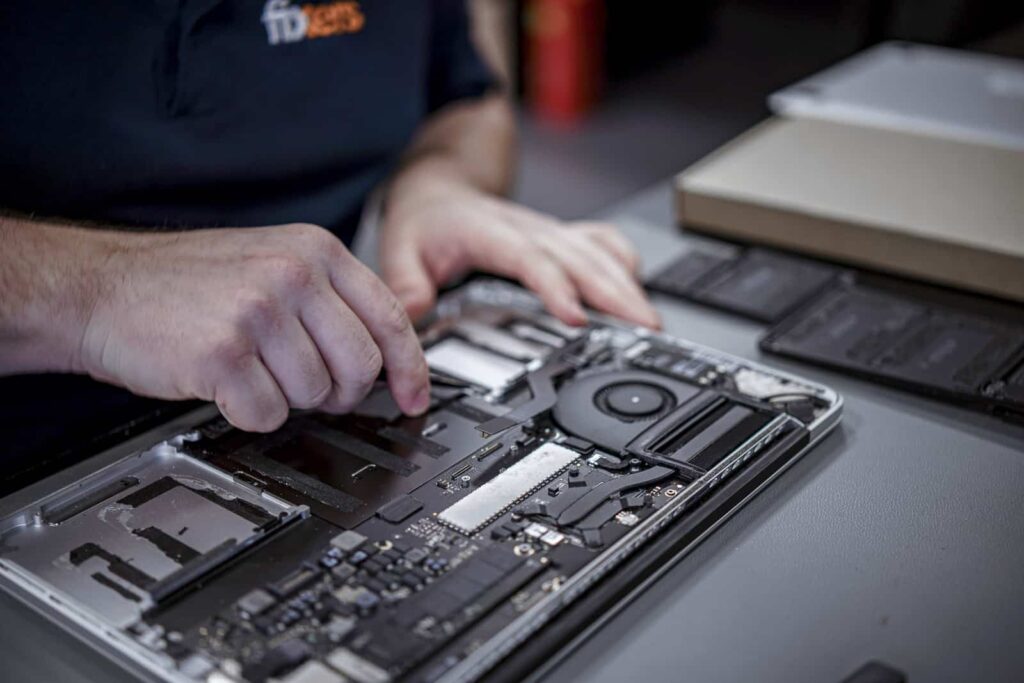
2. Restart your MacBook
Can you hear the fan or hard drive running and is a light on on your MacBook, but you still have no picture? Then something may have gone wrong while your MacBook was starting up. The best thing you can do then is restart your MacBook. You do this by following these steps:
1. Hold down the power button for 10 seconds
2. Once you see that the light is no longer on, wait 5 seconds
3. Then press the power button again to start up your MacBook again
3. MacBook screen problems
If step 2 doesn't give the result you wanted, your screen may be causing the problems. You'll want to rule this out first, so you can follow the steps below to find out whether your MacBook's screen is the problem.
- Do you hear a startup sound?
- Do you hear a fan or hard drive?
- Do you see the shutter LED light up? Only if your MacBook has one.
- Does the Caps Lock key on the keyboard light up when you press it? Is the answer to these questions yes? Good, then you do have power. The less good news is that the source of the problem is then indeed the screen.
4. Reset the SMC on your MacBook
Certain problems with the power supply, the battery, fans and other functions can be solved by resetting the SMC (System Management Controller).
Apple MacBook won't start up (with Touch ID)
- Hold down the following keys at the same time:
- Control on the left-hand side of the keyboard
- Option on the left-hand side of the keyboard
- Shift on the right-hand side of the keyboard
- Count to 7 while holding down the 3 keys.
- Now also hold down the power button.
- Count to 7 while holding down the 4 buttons.
- Release the buttons and wait 10 seconds.
- Press the power button to switch on your MacBook.
Apple MacBook won't start up (without Touch ID)
- Hold down the following keys at the same time:
- Shift on the left-hand side of the keyboard
- Control on the left-hand side of the keyboard
- Option on the left-hand side of the keyboard
- Count to 7 while holding down the 3 keys.
- Now also hold down the power button.
- Count to 7 while holding down the 4 buttons.
- Release the buttons and wait 10 seconds.
- Press the power button to switch on your MacBook.
5. Visit Fixers!
Have you tried the steps above, but still can't get your MacBook to start up? Then visit one of the Fixers service points or send your MacBook to our repair specialists. We'll make sure your MacBook is fixed again, so you can enjoy your most important device, the one you always have with you!