

No cure, no pay
Support
Replacing the SSD in a MacBook (Pro)
Don’t panic! We’re happy to help you solve this problem
Let's get straight to the point: you can replace your MacBook SSD yourself. Whether it's the SSD of a regular MacBook or a MacBook Pro SSD, our tips below will help you replace the SSD in your MacBook. SSD stands for Solid State Disk and is a popular alternative to a hard drive. Just like on a hard drive, you can store data on an SSD. The advantage of an SSD is that it uses less energy, works faster and is more reliable than a hard drive. Replacing a MacBook SSD can be an option if it's broken, but also if you want to give your laptop a faster drive.
Why replace a hard drive with an SSD in a MacBook?
As we mentioned above, an SSD has several advantages over a hard drive. An SSD is a chip, so data is stored faster and more efficiently than on an old-fashioned hard drive. This speed also gives you better performance. Your laptop starts up faster, the programmes you use run more smoothly and you can also game more smoothly on your laptop. Energy consumption is lower, there will be fewer sudden crashes and there is often more storage space available.
Make an appointmentVisit a store
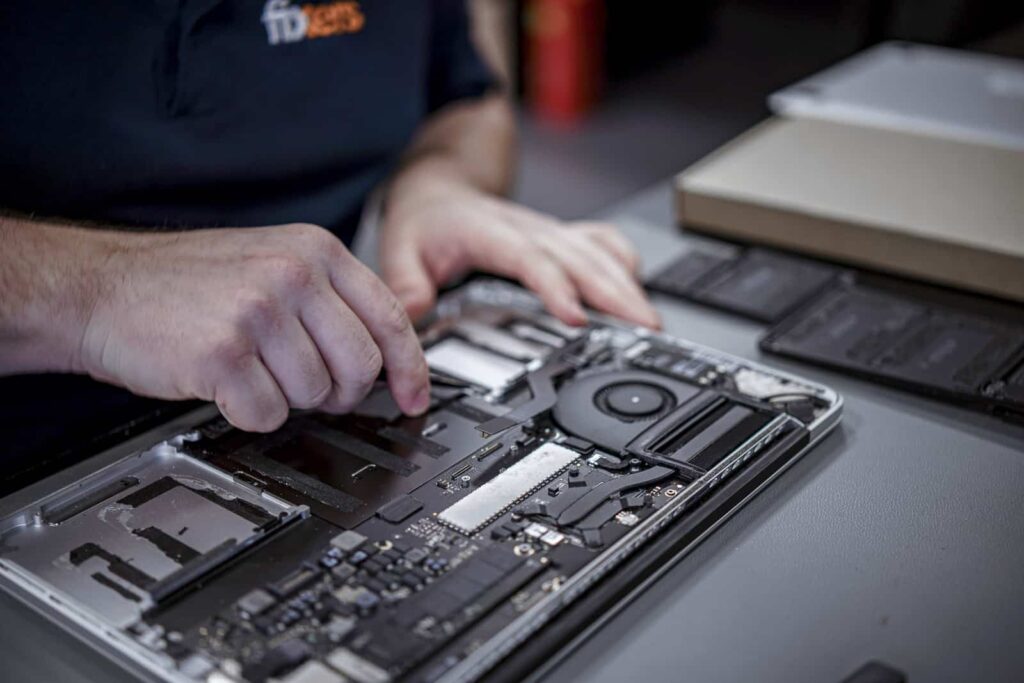
How can you replace a MacBook hard drive with an SSD?
Plenty of reasons to replace, for example, your Mac Mini hard drive with an SSD. Replacing the hard drive of your MacBook Pro is also possible. You can do this yourself with the help of our tips. First, we recommend that you look up which SSD is the most suitable for your laptop. Look for one that doesn't just have the same or more storage space than your current hard drive, but that will also physically fit in terms of size. Make a back-up of your data so you don't lose anything. Then remove all the screws on the underside and open up the bottom. First, carefully take out the battery. There may still be electricity in your laptop. Taking out the battery prevents you from getting a nasty shock.
After that, you can take the hard drive out of your laptop. Undo the relevant screws on the bracket and remove them. This frees the hard drive, so you can take it out of your laptop. You'll see that a cable is still attached to the hard drive. Carefully disconnect this cable to prevent damage. The hard drive is now completely free. Now remove the screws from the side of the hard drive. These screws need to be attached to the SSD, because they keep this component in the right place. Now you can place the SSD in your laptop. Attach the cable via the connector, screw everything back in place and fasten the bottom cover again with screws. Your MacBook is now ready for use again. Replacing an old MacBook SSD with a new one works in the same way.
Replacing a MacBook SSD at Fixers
You can upgrade your Apple MacBook by fitting it with an SSD. An SSD for your Mac laptop will have a positive effect on it. You may find replacing an SSD a bit daunting, or you may not be able to work it out. If the tips above don't work, you can always contact us.