
iPhone battery health: how to check it and when to replace the battery

Your iPhone doesn’t last as long as when it was new. That’s normal, because every battery wears out. But how far gone is yours? Your iPhone keeps track itself. In two minutes you’ll know whether your battery is still fine or whether replacing it is becoming sensible.
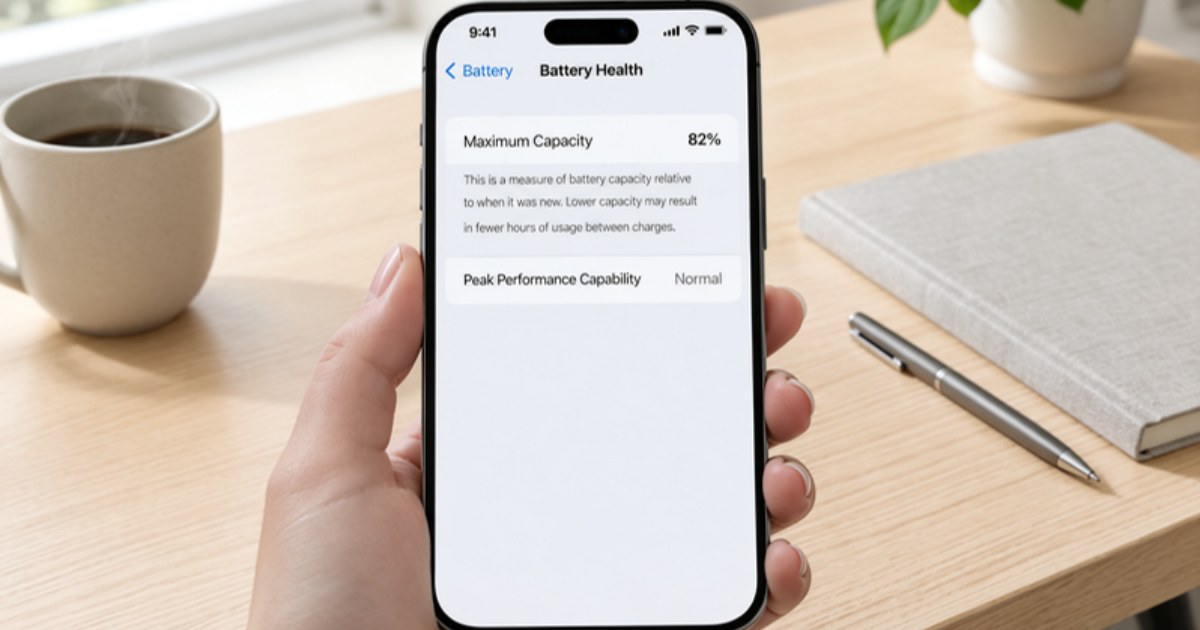
Go to Settings › Battery › Battery Health. If you see a maximum capacity of 80% or lower, or it says Service, the battery is worn out. From that point you usually notice it too: it runs flat faster and your iPhone can get slower. A new battery solves that.
Where can you see the battery health?
- Open SettingsTap Battery.
- Tap Battery HealthOn some iOS versions it’s called Battery Health & Charging.
- Look at Maximum CapacityThis is how much your battery can still hold, compared with when it was new.
Do you have an iPhone 15 or newer? Then you also see the number of charge cycles. You’ll find it under Battery Health and in Settings › General › About, together with the battery’s manufacture date.
What do the figures mean?
| What you see | What it means |
|---|---|
| 90 to 100% | Fine. You’ll notice little wear. |
| 81 to 89% | Normal wear. On a busy day you may need the charger sooner. |
| 80% or lower | The battery is worn out. Replacing it is worth it. |
| Service | Your iPhone itself indicates that the battery needs replacing. |
Apple designs the battery of an iPhone 14 or older to still have 80% left after 500 full charge cycles. For the iPhone 15 and newer, that’s 1000 charge cycles. A charge cycle is 100% of usage added up, so going from 100 to 50% twice counts as one.
Is there a message about peak performance? Then your iPhone has shut down unexpectedly once and sometimes slows itself down a little to prevent that. That is also a sign that the battery is spent.
How to keep your battery healthy for longer
- Charge limit or Optimised Battery Charging. On an iPhone 15 or newer, you choose a limit in Settings › Battery › Charging, for example 80%. On older models, turn on Optimised Battery Charging.
- Avoid heat. Don’t charge it under your pillow, in the sun or in a warm car. Heat wears out a battery faster than anything else.
- Don’t store it flat. If you’re not going to use your iPhone for a while, leave it at around 50%.
- Use a good charger. A damaged cable or fake adapter can make your iPhone unnecessarily warm.
Closing apps in the App Switcher doesn’t help, by the way. You can read more about this in our battery myths.
Battery replaced while you wait
Choose your iPhone and then Battery. You’ll see the price per quality straight away. A battery replacement is usually done within 30 minutes.
- Open 7 days a week
- Warranty of up to 12 months
- Done while you wait
Frequently asked questions
At what percentage should I replace my battery?
From 80%, or if your iPhone says Service. If you already notice it doesn’t last the day, replacing it sooner can also make sense.
Why can’t I see the battery health?
There is probably no genuine or paired battery in it. Your iPhone then shows the Unknown Part message and doesn’t show the percentage.
Will my iPhone get faster with a new battery?
If it was being slowed down by peak performance management, yes. You’ll notice it especially with demanding apps and the camera.
Is charging to 100% bad?
Not really bad, but a limit of 80% spares the battery in the long term. If you need the full capacity, just keep charging.
Read also
Daan has been a technician at Fixers for three years and is certified for Apple (Atlas) and Samsung (GSPN). He works at Fixers Leiden and helps write the knowledge base, so that you can often solve a problem yourself first.