
MacBook screen flickering or showing lines: causes and fixes

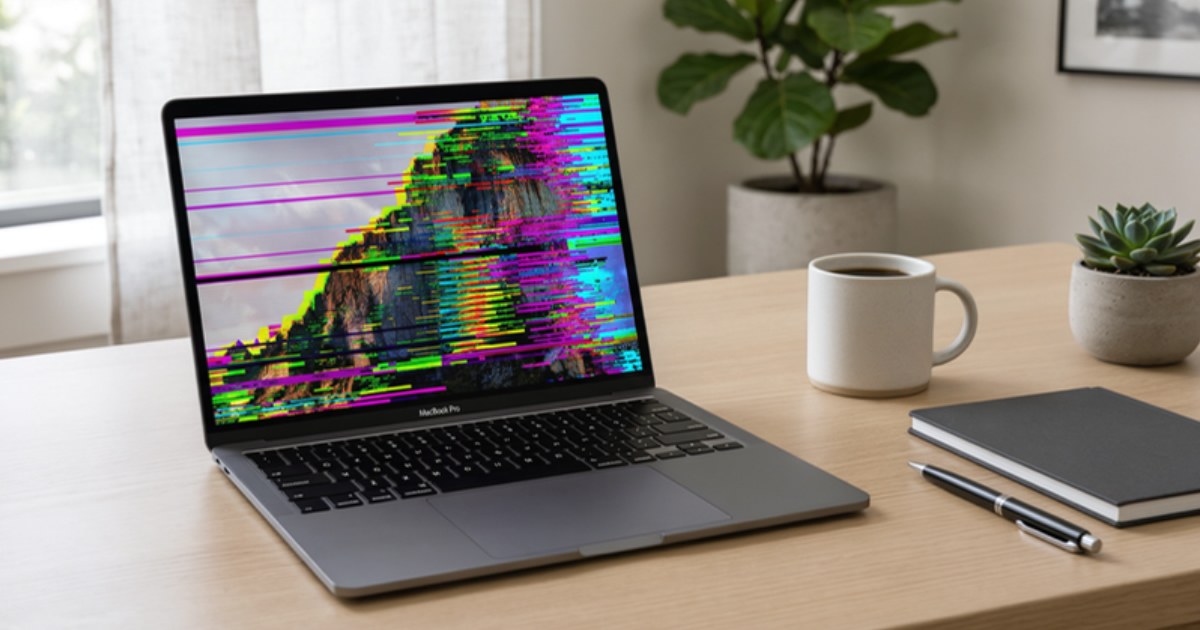
Your MacBook’s screen blinks, cuts out when you open it further or shows lines. Sometimes it goes away on its own, sometimes it gets worse. The cause can be in the software, in the cable to the screen or in the screen itself. Two simple tests will get you a long way.
Connect an external display. If the picture is fine there, the problem is in your MacBook’s screen or cable. Also start up in Safe Mode. If the flickering is gone there, it’s down to software. If the picture changes when you move the lid, the screen cable is often damaged.
Two tests
- External displayConnect your MacBook to a monitor or TV. A good picture on the external display means the MacBook itself is producing the picture correctly.
- Safe ModeOn a Mac with an Apple chip: turn it off, hold the power button until you see the startup options, choose your disk, then hold Shift and click Continue in Safe Mode.
Possible causes
- Software or settings. Update macOS. Under Displays, try a different refresh rate, and turn off automatic brightness and True Tone for a while.
- Screen cable. Does the picture cut out or do lines appear at a certain lid angle? Then the cable between the screen and the MacBook is worn. This is a known problem on some MacBook Pro models from 2016 to 2018.
- The screen itself. Fixed lines or spots in the picture that don’t show up in a screenshot either point to damage to the screen.
- Moisture. After a spill, lines or flickering can appear.
What to do now
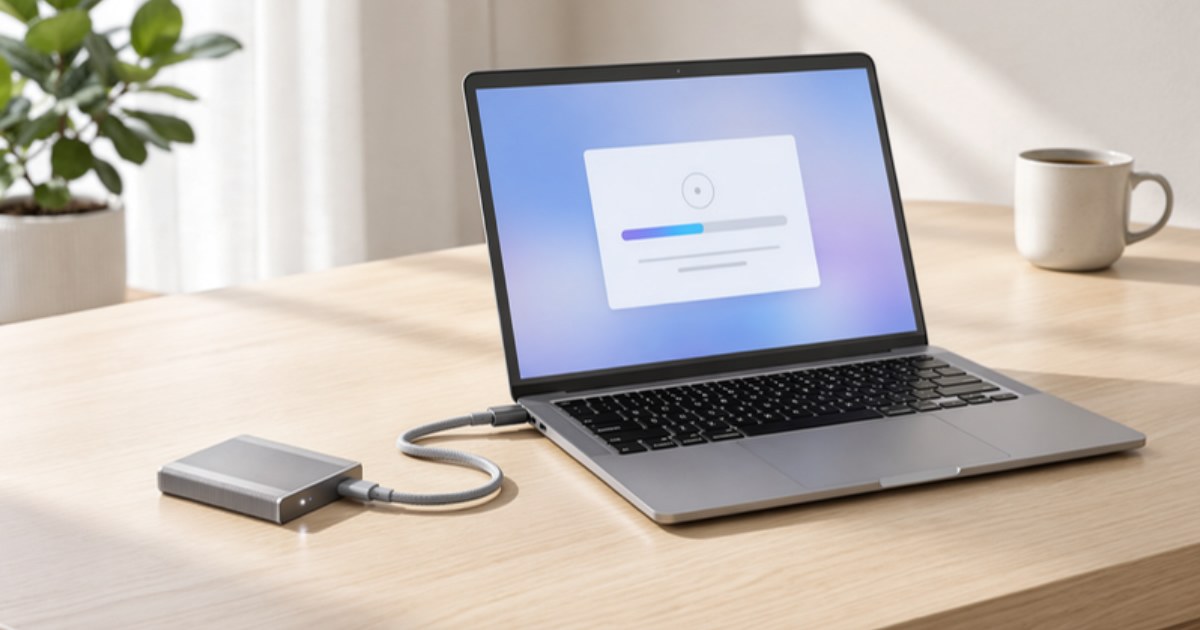
Make a Time Machine backup while you still have a picture. If the cable is the cause, the picture can eventually disappear completely. If you work a lot on your MacBook, an external display is a fine temporary solution until the repair.
Have your MacBook screen checked
Choose your MacBook and then Screen. We first test whether it’s the cable or the screen.
- Open 7 days a week
- Warranty of up to 12 months
- Done while you wait
Frequently asked questions
Can an update stop the flickering?
If it’s a software problem, yes. Update macOS and test in Safe Mode.
My screen cuts out when I open it wide. What is that?
Usually the cable to the screen is worn. It gets worse the longer you keep using it.
Can I use my MacBook with an external display?
Yes, as a temporary solution that works fine.
Does the whole screen need replacing?
Not always. Sometimes it’s only the cable. We test that first.
Also read
Daan has been a technician at Fixers for three years and is certified for Apple (Atlas) and Samsung (GSPN). He works at Fixers Leiden and contributes to the knowledge base, so that you can often solve a problem yourself first.