
Prepare your MacBook for repair or sale

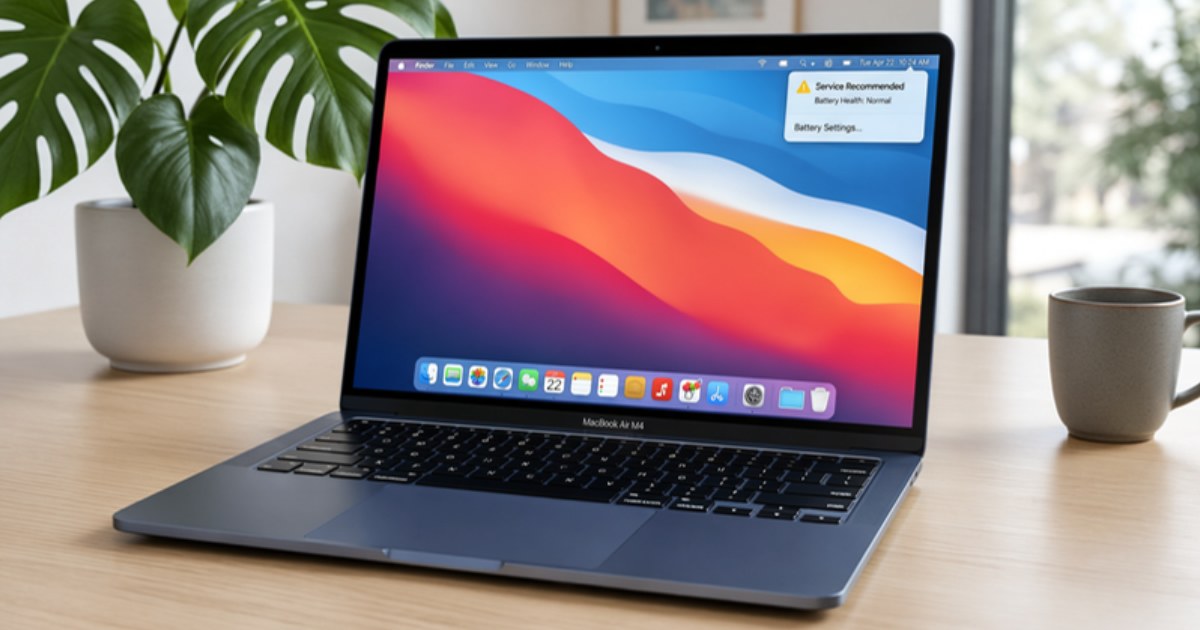
Whether you’re having your MacBook repaired or selling it, a little preparation saves you hassle and keeps your files safe. Preparing for a repair is different from preparing for a sale. Below you can read about both.
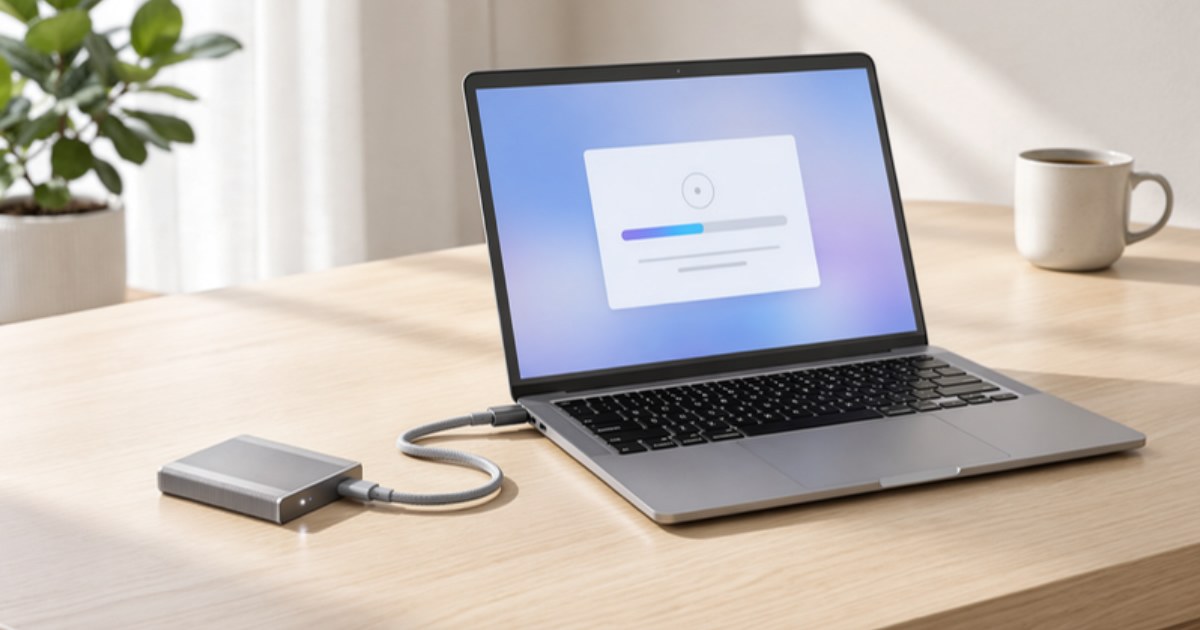
Always make a backup with Time Machine first. For a repair, Find My Mac can usually stay on, and you make sure we can log in to test. If you’re selling it, choose Erase All Content and Settings. That signs you out, removes Activation Lock and gets it ready for the new owner.
Backup first
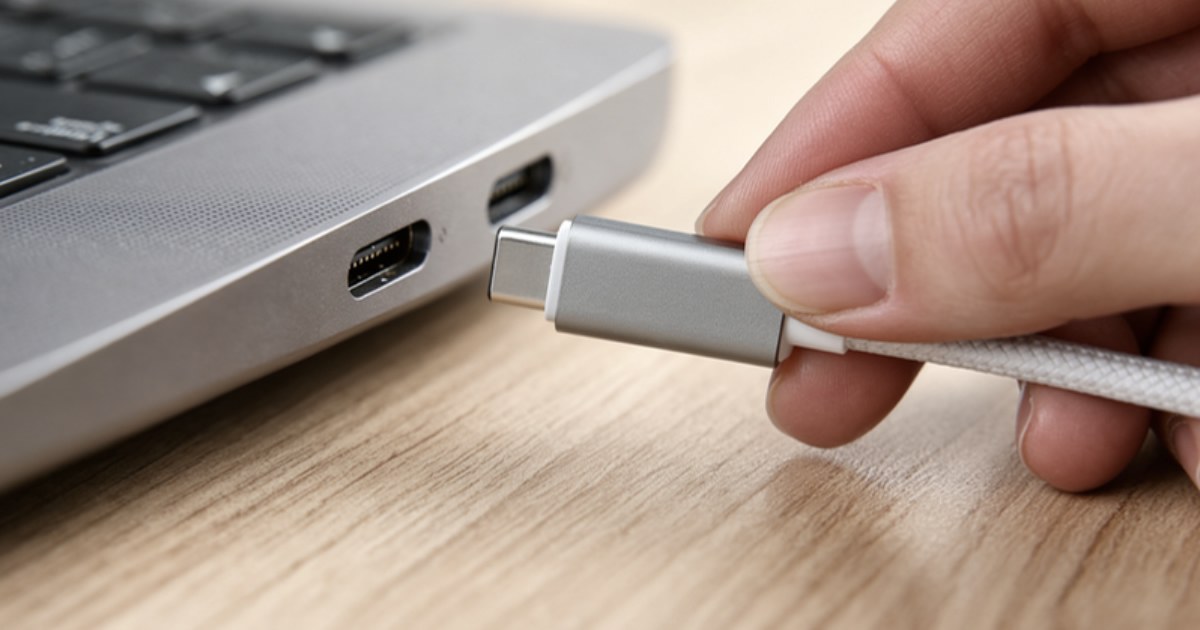
- Connect an external driveAt least as big as everything on your MacBook.
- Open Time MachineSystem Settings › General › Time Machine › Add Backup Disk.
- Let it runThe first backup takes a long time. Keep your MacBook plugged into the charger.
If you use iCloud Drive, check that all your files have really been uploaded.
For a repair
- Log in. After the repair we test the screen, keyboard, trackpad, camera and wifi. Give us your password, or create a separate user for the test.
- Find My Mac. This can usually stay on. If your MacBook needs to be erased, we’ll ask you to turn it off.
- Bring your charger. Bring your charger and cable, especially if you have charging problems.
- Describe the problem. When does it happen and what have you already tried?
For selling or trading in
- Disconnect your accessoriesSuch as a Bluetooth keyboard and AirPods, so they don’t stay paired with the new owner’s Mac.
- Erase All Content and SettingsSystem Settings › General › Transfer or Reset. This works on Macs with an Apple chip or T2 chip.
- Check Activation LockWhen erasing, you sign out of your Apple Account. That removes the lock.
You erase older Macs via macOS Recovery. Sign out of your Apple Account first.
Plan a MacBook repair
Choose your MacBook and the repair. You’ll see the price straight away.
- Open 7 days a week
- Warranty of up to 12 months
- Done while you wait
Frequently asked questions
Do I need to turn off Find My Mac for a repair?
Usually not. Only if your MacBook needs to be erased.
Will my files stay on the MacBook during a repair?
With most repairs, yes. Still, always make a backup.
What is Activation Lock?
A security feature that links your MacBook to your Apple Account. If you don’t sign out, nobody else can use it.
How do I erase an older Mac?
Via macOS Recovery. First sign out of your Apple Account and turn off Find My Mac.
Also read
Daan has been a technician at Fixers for three years and is certified for Apple (Atlas) and Samsung (GSPN). He works at Fixers Leiden and helps write the knowledge base, so that you can often solve a problem yourself first.