
12 hidden Samsung settings you’ll actually use
Samsung packs a lot of extras into One UI. That’s handy, but it also means you can’t see the wood for the trees. These are the twelve features we recommend most often in our stores. You can switch most of them on in half a minute.
The most useful hidden Samsung features are Battery protection, Maintenance mode, Secure Folder, Theft Protection, double-tapping to turn the screen on or off, and Extra dim. Menu names differ per model and One UI version, so use the search function in Settings as well.
Battery and maintenance
1. Battery protection
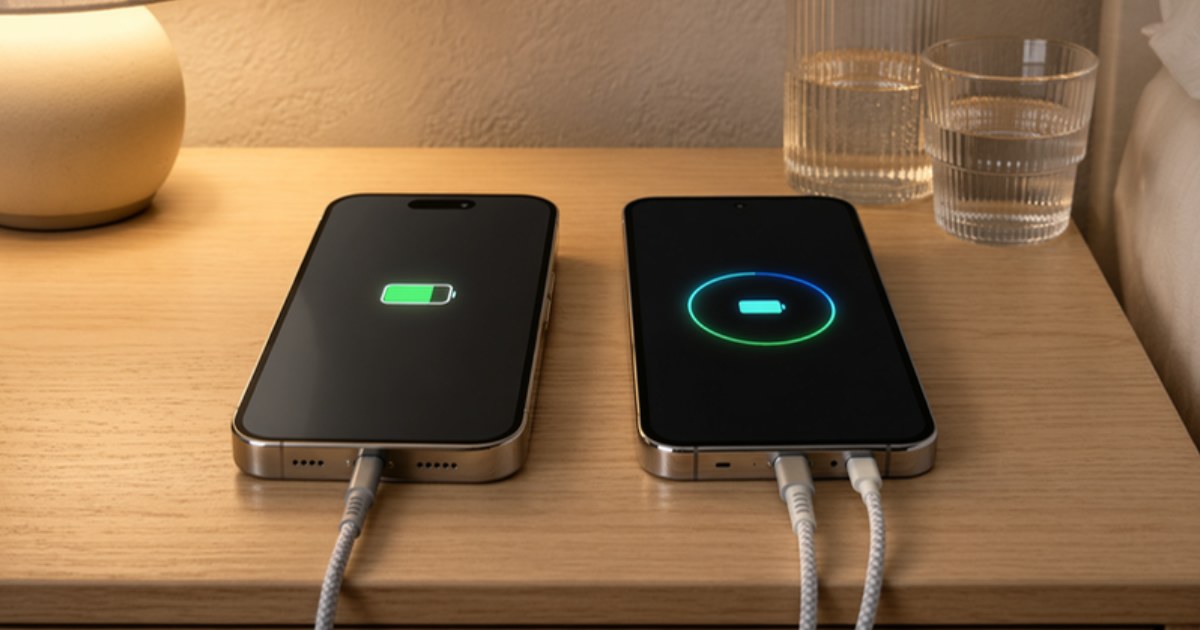
Settings › Battery › Battery protection. Choose Maximum and your phone charges up to 80%. That’s good for the lifespan of your battery.
2. Maintenance mode
Settings › Battery and device care › Maintenance mode. Your data stays private while your phone is being repaired. You can read more about this in our article on Maintenance mode.
3. Automatic restart
In Battery and device care, you can have your phone restart once a week at night. That keeps it running smoothly.
Security
4. Secure Folder
Search Settings for Secure Folder. You get a separate, encrypted space for photos, files and apps, with its own code.
5. Theft Protection
Search Settings for Theft Protection. Your phone locks itself if someone snatches it from your hand and runs off, and asks for your fingerprint when you change sensitive settings.
6. Sharing Wi-Fi with a QR code
Settings › Connections › Wi-Fi › the cog next to your network › QR code. Someone else scans it and is connected straight away.
Easier controls
7. Double tap
Settings › Advanced features › Motions and gestures. Turn on double tap to turn the screen on or off.
8. Opening the camera quickly
Settings › Advanced features › Side key. Press the side button twice and your camera opens straight away.
9. One-handed mode
Settings › Advanced features › One-handed mode. Swipe down in the middle of the bottom edge and the screen slides down.
Comfort
10. Extra dim
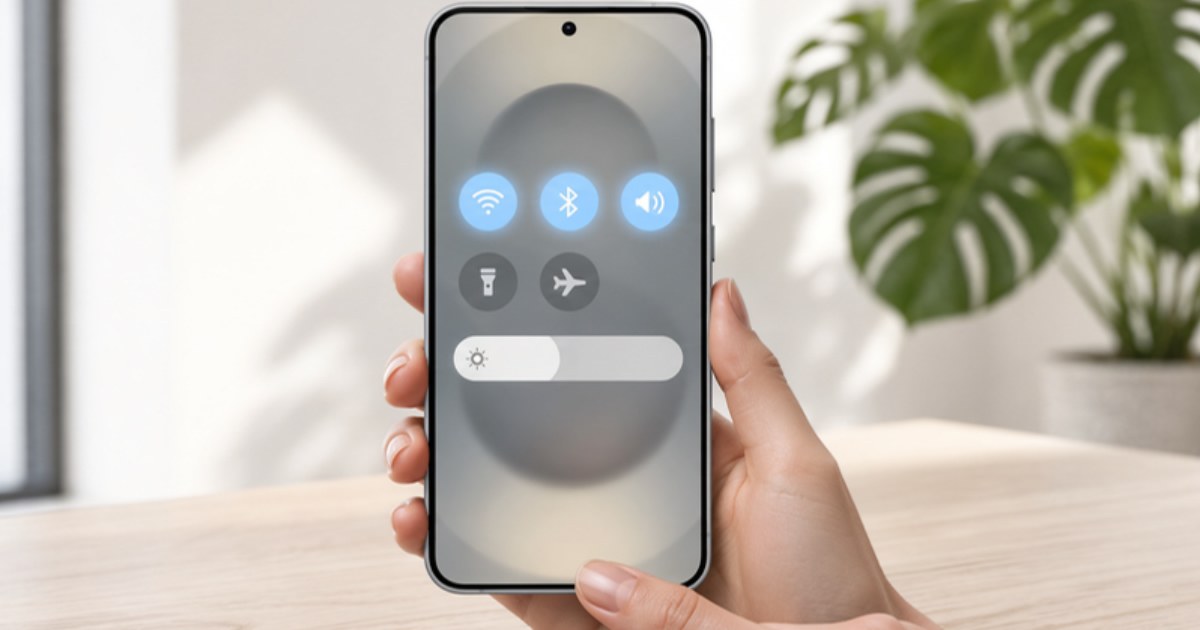
Settings › Accessibility › Visibility enhancements › Extra dim. Your screen goes darker than the lowest brightness setting. Lovely in bed.
11. Modes and Routines
Settings › Modes and Routines. Have your phone go silent automatically at work, or turn on Wi-Fi when you get home.
12. Remove animations
Settings › Accessibility › Visibility enhancements › Remove animations. Your phone feels faster straight away.
Something broken on your Samsung?
Choose your Samsung and the repair. You’ll see the price straight away.
- Open 7 days a week
- Warranty of up to 12 months
- Ready while you wait
Frequently asked questions
Do these settings work on every Samsung?
Most do, on a recent version of One UI. On older or cheaper models, some features are missing.
Why can’t I see a setting?
Menu names differ per model and One UI version. Use the magnifying glass at the top of Settings.
Is Secure Folder really secure?
Yes, the folder is encrypted and has its own lock. Don’t forget your code.
Does Extra dim damage your screen?
No. It’s just a filter. It even saves a little battery.
Also read
Our technicians repair phones, tablets and laptops every day in the Fixers stores and Repairbars. We write down what we come across in the workshop in the knowledge base, so that you can often solve a problem yourself first.